How it works
How to convert PDF to JPG
Render PDF pages as JPG images for sharing or use in another layout.
Open your PDF
Choose the document and check its page information.
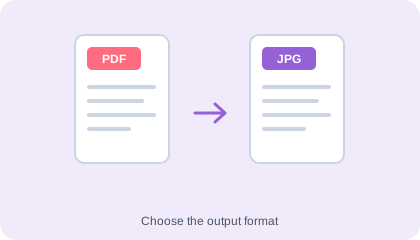
Convert the pages
Run PDF-to-JPG conversion and let the tool render each page.
Save and inspect
Download the image result and check small text, page edges and the order of any exported pages.
Understand your result
Each selected page becomes an image
Check the page numbers, orientation and small text in the saved JPGs. Image output is useful for previews but does not retain interactive PDF fields or selectable text.
Keep the original PDF when you need searchable text, links, signatures or form functionality.
Before you save
- JPG uses lossy compression and does not support transparency.
- A JPG cannot retain PDF form fields, selectable text or clickable page objects. Keep the original PDF if you need those features.
Common questions
Can I edit text in the JPG?
The words are pixels in the JPG. Use Image to Text or Image to Word to recognise them, and check the recognised text for errors.
Will conversion change my PDF?
No. It creates separate image downloads and leaves your source file unchanged.
When should I keep the PDF instead?
Keep the PDF for searchable text, accessible reading, forms and document printing. Use JPG when a destination specifically needs a picture.