How it works
How to convert PDF to Excel
Extract PDF table content into a spreadsheet and verify the cells before using the data.
Open your PDF
Choose a PDF and let its page information load. Use a clear digital original when one is available.
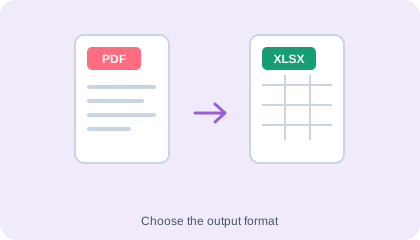
Convert the content
Run the conversion and wait for the editable document to be prepared. Keep the page open while it works.
Download and review
Save the XLSX file and open it in a compatible application. Check column boundaries, amounts and dates; PDF values do not include the source spreadsheet formulas.
Understand your result
Check the values, not just the columns
Compare headers, row boundaries, dates, decimal separators and totals with the source. A visually aligned table can still contain misplaced values.
A PDF does not contain the original spreadsheet formulas. Recreate calculations only after checking the extracted values.
Before you save
- PDF stores page positions, while Office files use different layout rules. Complex effects and unavailable fonts can look different.
- For image-only pages, use a relevant OCR tool or extract the page as an image and recognise its text.
Detected tables become rows and columns with formatting. Pictures stay separate; overlapping pictures may move below the cells to keep text readable. Review cell boundaries and numbers; original spreadsheet formulas cannot usually be recovered from a PDF.
Common questions
Will the XLSX file look exactly like the PDF?
The converter tries to rebuild the page content, but exact matching is not guaranteed. Check column boundaries, amounts and dates; PDF values do not include the source spreadsheet formulas.
Can this convert scanned words into editable text?
Not through ordinary PDF text extraction. Image-only content needs OCR; use the image-to-text or image-to-Office tools for that step.
Is the original PDF changed?
No. Conversion creates a separate Office download and does not overwrite the source PDF.