How it works
How to convert HEIC to JPG
Open a supported file, run the conversion and review the downloaded result.
Choose HEIC / HEIF
This page accepts HEIC / HEIF only. Add up to 20 images, no larger than 25 MB each or 100 MB in total.
Check the JPG / JPEG settings
Review the edited preview and any available quality or colour settings before conversion.
Convert and download
Create the JPG / JPEG files. Save each result or download the group as a ZIP, then open it in the destination application.
Understand your result
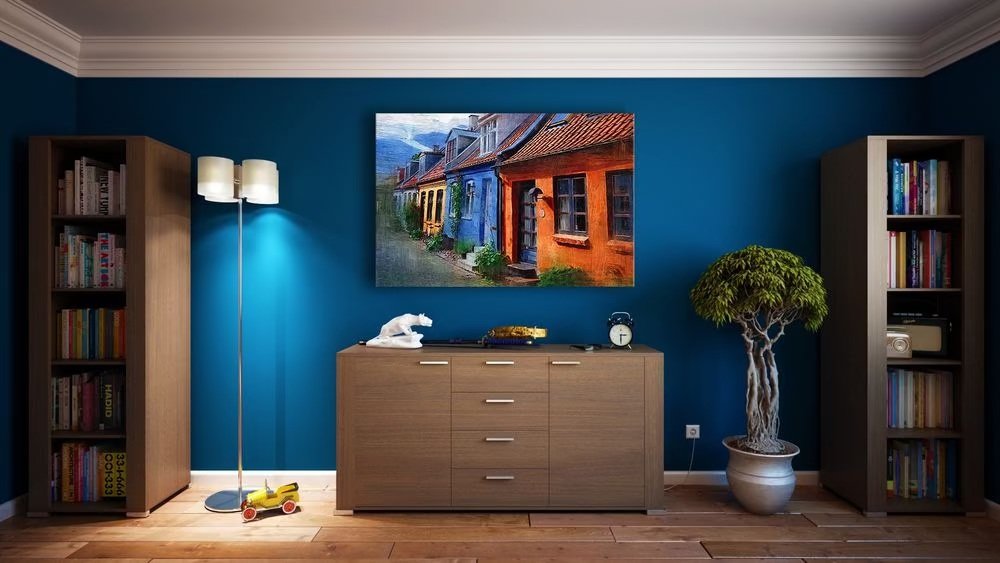
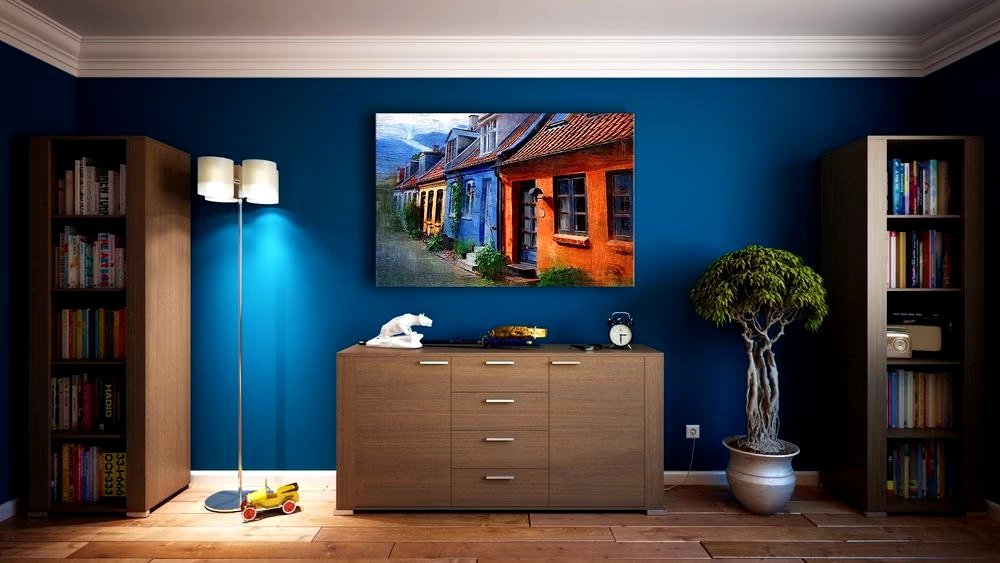
A HEIC photo, ready to share as JPG
This example starts with a genuine HEIC file and shows the JPG exported by this tool. The photo stays recognisable while its file format changes.
Check the JPG dimensions, colours and orientation before uploading it elsewhere.


Actual sample output · Photo from Pexels. Your settings and photo will affect the result.
Browser limits vary. If worker canvas processing is unavailable, the standard-canvas path accepts up to 12 megapixels per input/output and smaller animations (up to 60 frames and 12 million total input/output frame pixels). Try smaller files if your device cannot complete a task.
Example photo: Pexels source photo, used under the Pexels licence. The example illustrates settings; it is not an endorsement or an acceptance guarantee.
Before you save
- Keep the source PNG or WebP if you may need its transparent background later. Converting the white JPG back to PNG will not recreate that transparency.
- Only still PNG and WebP images are supported; animated PNG and WebP are not accepted.
Common questions
Will the JPG keep a transparent background?
No. Transparent areas become white. Choose PNG or WebP if you need to preserve transparency.
Can I add a different format to this HEIC to JPG tool?
This page accepts HEIC / HEIF. Use Image Converter for other supported source formats.
Will conversion make the image file smaller?
Not always. Output size depends on the format and settings. Choose a compression tool when reducing storage is the main goal.