How it works
How to convert PNG to SVG
Add your image, review the available conversion settings and inspect the saved graphic.
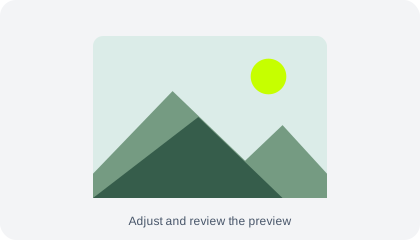
Choose PNG
This page accepts PNG only. Add up to 20 images, no larger than 25 MB each or 100 MB in total.
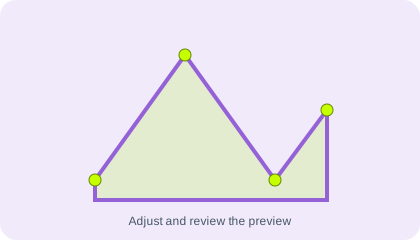
Choose tracing detail
Select the number of colours for SVG tracing. Check that simple shapes, outlines and lettering remain useful.
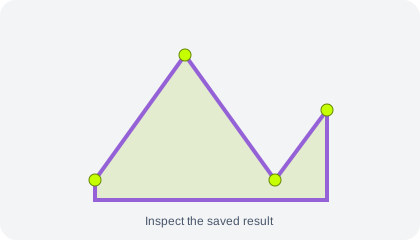
Convert and inspect the SVG
Create the result and download the SVG. Open it in a compatible browser or vector editor to inspect paths and edges.
Understand your result
Check the outline at a larger size
For tracing, use a simple image with clear shapes. Inspect small details in the SVG rather than expecting a photograph to remain identical.
Tracing creates vector shapes. Complex photos can produce many shapes and lose subtle detail.
Browser limits vary. If worker canvas processing is unavailable, the standard-canvas path accepts up to 12 megapixels per input/output and smaller animations (up to 60 frames and 12 million total input/output frame pixels). Try smaller files if your device cannot complete a task.
Before you save
- Tracing uses a preview up to 800 pixels on its longest edge. It creates SVG paths rather than embedding the entire source image, but detail is limited by that tracing resolution.
- Only still PNG and WebP images are supported; animated PNG and WebP are not accepted.
Common questions
Will a traced SVG look exactly like my image?
No. Tracing simplifies colours and boundaries. It is most suitable for simple artwork, and may change text, gradients and photographic details.
Can I add a different format to this PNG to SVG tool?
This page accepts PNG. Use Image Converter for other supported source formats.
Does this preserve editable original layers?
No. A raster image has pixels, not the source designer’s layers or objects. Tracing creates a new approximation made from vector paths.